Overview

Sometimes an order needs to be shipped in more than one package — for example when items won't fit together, need different shipping methods, or are being fulfilled at different times. TCGTracking lets you split any order into multiple packages and transfer items between them.

Splitting an order creates a new linked package going to the same address. Insurance settings are copied from the original order and can be adjusted on the new package.
Items are not automatically moved when you create a new package. You need to manually transfer items from the original order after the package is created.

Video walkthrough

Watch a full walkthrough of the order splitting process:

Step by step

1
Find your order and click the + button

After importing your order, find it in your orders list. On the right hand side in the Actions column click the "+" button to begin the split process.

2
Verify the address and create the package

A dialog will appear showing the shipping address and a summary of items in the original order. Review the address then click "Create Package" to create the new linked package.
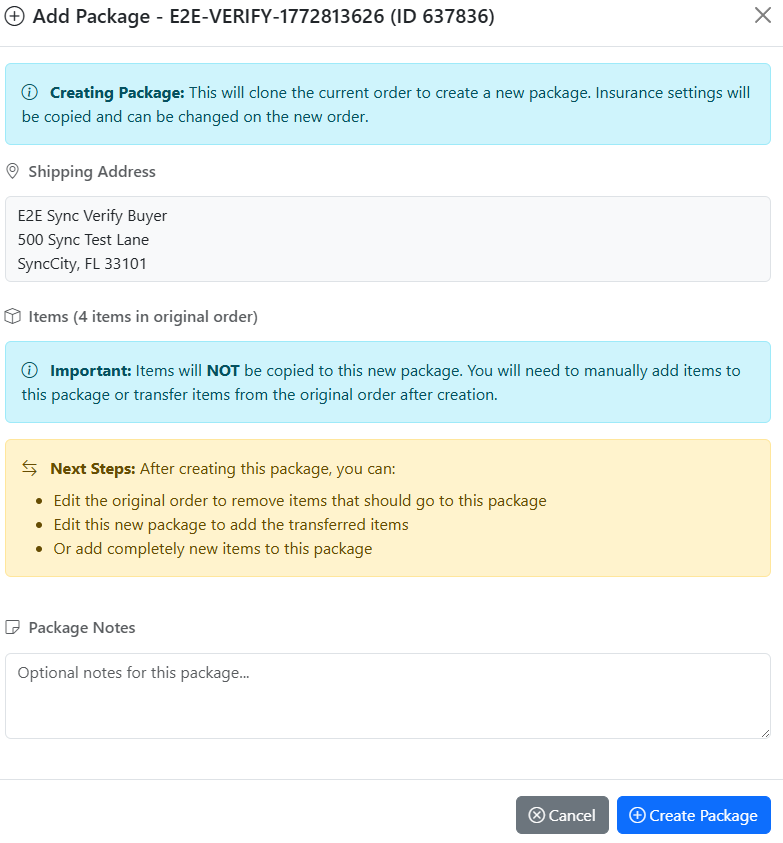
Add Package dialog showing shipping address and create package button
The Add Package dialog. Review the address and click Create Package. Click to enlarge.
3
Open the original order and click Transfer Items

Click on the original order to open it. You will see the full list of items. Click "Transfer Items" at the top of the items section.
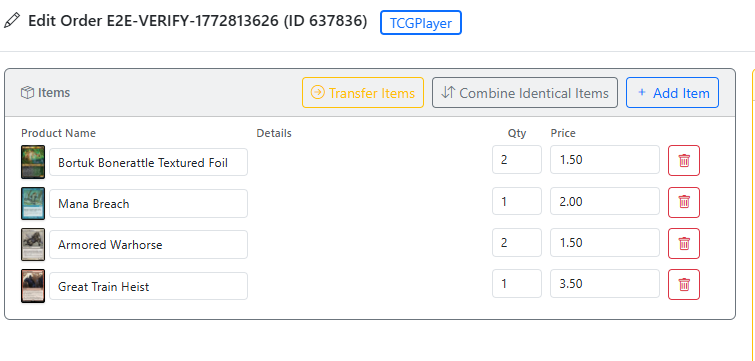
Edit Order screen showing Transfer Items button
The Edit Order screen. Click Transfer Items to move items to the new package. Click to enlarge.
4
Select items and transfer them

The Transfer Items to Add-On Order dialog will appear showing all items in the original order. Check the boxes next to the items you want to move to the new package then click "Transfer Selected Items".
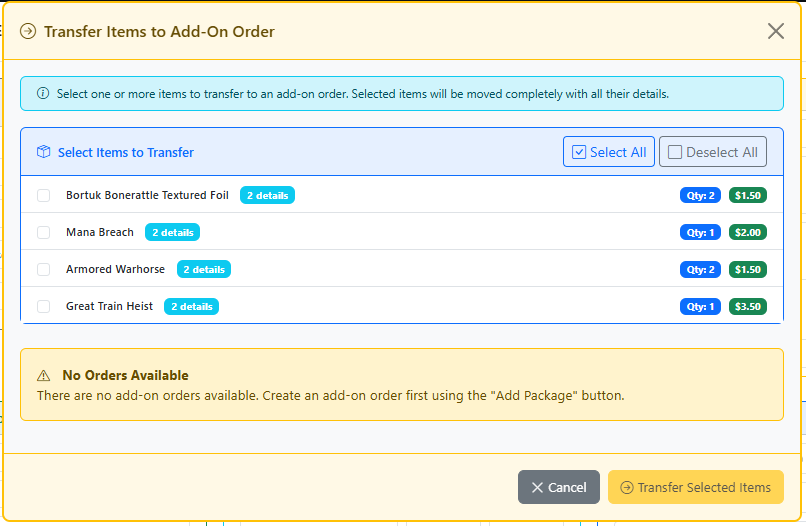
Transfer Items to Add-On Order dialog with item selection
Select the items to transfer then click Transfer Selected Items. Click to enlarge.
5
Continue with your normal workflow

The selected items are now in the new package. Both orders will appear in your orders list and can be printed and shipped separately as normal.

You can split an order into more than two packages by repeating the process — just click the + button again on the original order to create additional packages.

Join our Discord

Connect with the community and get help from other sellers.

Join Discord