Overview
The TCGTracking Bridge is a Chrome browser extension that works like you logging into your TCGPlayer seller portal. It reads the same information your browser sees when you visit TCGPlayer — orders, inventory, pricing — and relays it to your TCGTracking dashboard so you can manage everything in one place.
How It Works
- After you sign into TCGPlayer in your browser, the extension reads information from your seller portal exactly as if you were viewing those pages yourself
- All requests are made by your device, your IP address, and your browser — identical to normal browsing
- TCGTracking does not store or have access to your OAuth tokens, session cookies, or any secret keys
- The extension communicates directly between your browser and TCGPlayer — your credentials are never transmitted
What It Does
- View and import orders from your TCGPlayer seller portal
- Push inventory quantities and pricing directly to TCGPlayer by manually hitting "Sync Now" on inventory screen or "Sync to TCGPlayer" via sidebar
- Read your seller ID and account details
- Auto-detects if you need to log into TCGPlayer first
- All communication stays between your browser and TCGPlayer
How it works
Other similar tools exist in the TCG community for reading orders, syncing inventory, and managing listings. This extension follows the same approach — browser-based requests using your active session.
When you are logged into TCGPlayer in Chrome and the extension is active, it can read the same data you see in your seller portal. It then relays that information to TCGTracking so your dashboard stays up to date automatically without you having to manually export and import files.
Installing the extension
The TCGTracking Bridge is installed as an unpacked Chrome extension. This takes about two minutes.
Download the Bridge Extension ZIP file from the link at the bottom of this page.
Extract the contents to a permanent folder on your computer — for example, create a folder called TCGTracking-Bridge on your Desktop.
Open Chrome and type chrome://extensions in the address bar. Toggle Developer mode ON using the switch in the top right corner.
Click Load unpacked and select the folder you extracted in step 2. The TCGTracking Bridge extension will appear in your extensions list.
Important notes
- This extension is not affiliated with, endorsed by, or associated with TCGPlayer
- It reads publicly available seller portal data using your authenticated browser session
- API calls go directly from your browser to TCGPlayer — if you choose to import or sync data, it is processed at your request
- You must be logged into TCGPlayer in Chrome for the extension to work
Beta disclaimer
This tool is provided as-is for convenience. TCGTracking makes no warranties regarding its accuracy, reliability, or continued availability. Use at your own discretion. You are responsible for verifying any data or actions performed through this extension before relying on them for business decisions. By using this extension, you accept all responsibility for its use and any consequences thereof.
Importing inventory from TCGPlayer
Once the Bridge extension is installed and you are logged into TCGPlayer in Chrome, you can bulk import your live inventory directly into TCGTracking in just a few clicks — no file export or mapping step needed.
Navigate to the Inventory tab in your TCGTracking dashboard.
Click Bulk Tools then select Bulk Import / Update.
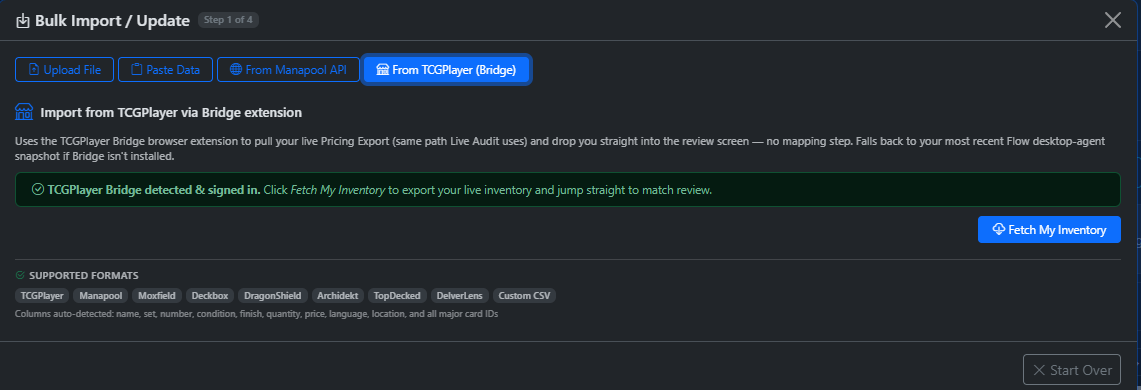
Click the From TCGPlayer (Bridge) tab. If the extension is installed and you are signed in you will see a green message saying TCGPlayer Bridge detected & signed in.
Click Fetch My Inventory. Your live inventory will load straight into the review screen with no mapping step required.
Importing orders from TCGPlayer
Once the Bridge extension is installed and you are logged into TCGPlayer in Chrome, you can pull your open orders directly into TCGTracking without exporting any files.
Navigate to the Orders tab in your TCGTracking dashboard.
Click the TCGPlayer Bridge tab. Your open TCGPlayer orders will load automatically.
Review the orders and click Import. The orders will be pulled into TCGTracking and ready to process.
Head back to your Open Orders tab and continue with your normal shipping workflow — print envelopes, add insurance, and ship.
Download
Click below to download the latest version of the TCGTracking Bridge Extension.
Download Bridge Extension v2.4.2